 603c4c5fbc
Summary: Changed the podspec file to expose only those header files in public which are necessary. The exposed public header files have no c++ in it, thus due to this layout plugin now works for swift too. Fixes #174 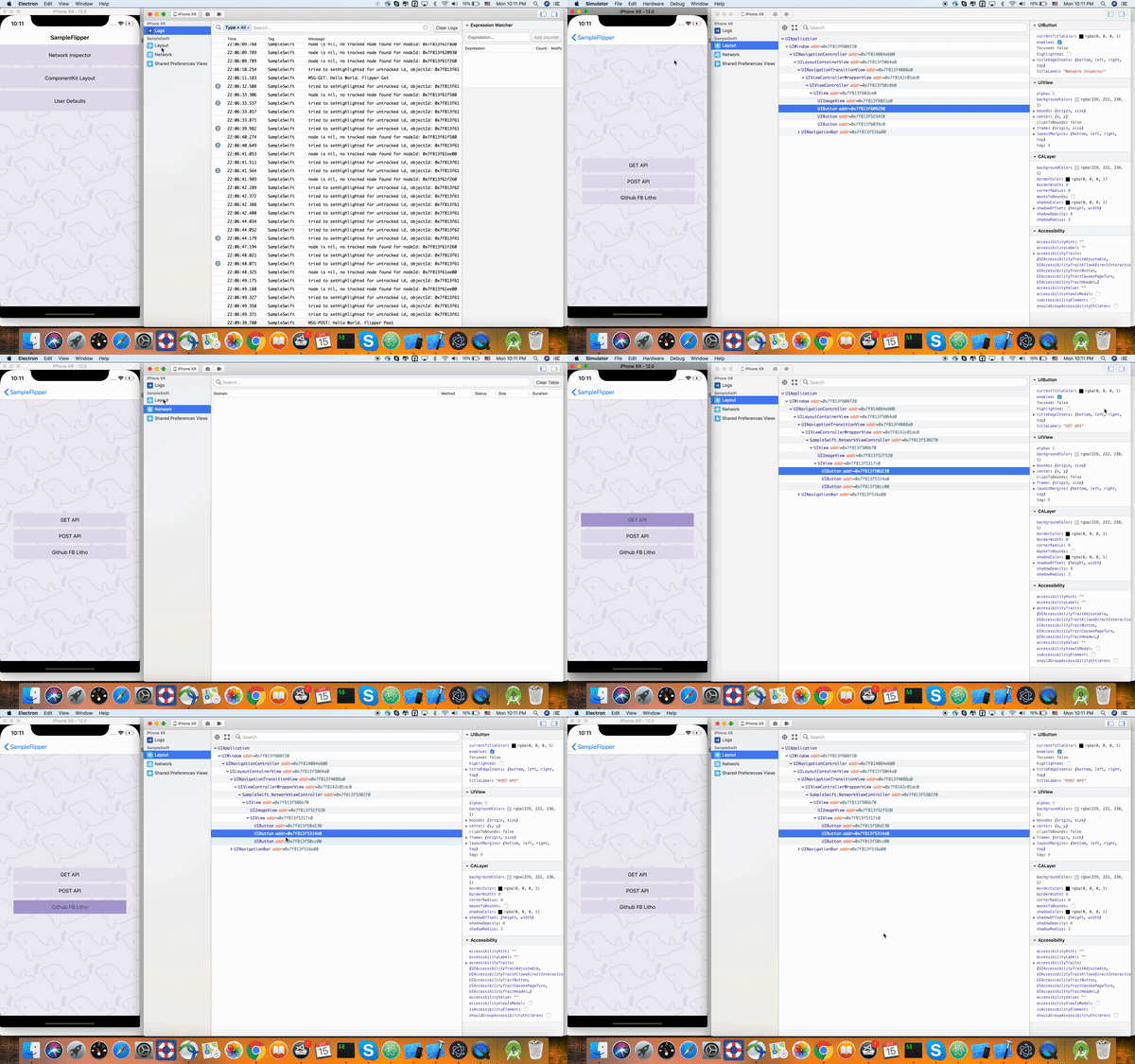 Pull Request resolved: https://github.com/facebook/flipper/pull/295 Reviewed By: passy Differential Revision: D10389202 Pulled By: priteshrnandgaonkar fbshipit-source-id: 0ecc428f8008dd3aac48a675a8b97bb610f8e9eb

116 lines
5.9 KiB
Markdown
116 lines
5.9 KiB
Markdown
---
|
|
id: layout-plugin
|
|
title: Layout Inspector
|
|
---
|
|
|
|
The Layout Inspector in Flipper is useful for a ton of different debugging scenarios. First of all, you can inspect what views the hierarchy is made up of as well as what properties each view has. This is incredibly useful when debugging issues with your product.
|
|
|
|
The Layout tab supports [Litho](https://fblitho.com) and [ComponentKit](https://componentkit.org) components as well. We integrate with these frameworks to present components in the hierarchy just as if they were native views. We show you all the layout properties, props, and state of the components. The layout inspector is further extensible to support other UI frameworks.
|
|
|
|
If you hover over a view or component in Flipper we will highlight the corresponding item in your app. This is perfect for debugging the bounds of your views and making sure you have the correct visual padding.
|
|
|
|

|
|
|
|
## Setup
|
|
|
|
To use the layout inspector plugin, you need to add the plugin to your Flipper client instance.
|
|
|
|
### Android
|
|
|
|
**Standard Android View Only**
|
|
|
|
```java
|
|
import com.facebook.flipper.plugins.inspector.DescriptorMapping;
|
|
import com.facebook.flipper.plugins.inspector.InspectorFlipperPlugin;
|
|
|
|
final DescriptorMapping descriptorMapping = DescriptorMapping.withDefaults();
|
|
client.addPlugin(new InspectorFlipperPlugin(mApplicationContext, descriptorMapping));
|
|
```
|
|
|
|
**With Litho Support**
|
|
|
|
If you want to enable Litho support in the layout inspector, you need to augment
|
|
the descriptor with Litho-specific settings and add some addition dependencies.
|
|
|
|
```java
|
|
import com.facebook.litho.config.ComponentsConfiguration;
|
|
import com.facebook.flipper.plugins.inspector.DescriptorMapping;
|
|
import com.facebook.flipper.plugins.inspector.InspectorFlipperPlugin;
|
|
import com.facebook.flipper.plugins.litho.LithoFlipperDescriptors;
|
|
|
|
// Instead of hard-coding this setting, it's a good practice to tie
|
|
// this to a BuildConfig flag, that you only enable for debug builds
|
|
// of your application.
|
|
ComponentsConfiguration.isDebugModeEnabled = true;
|
|
|
|
final DescriptorMapping descriptorMapping = DescriptorMapping.withDefaults();
|
|
// This adds Litho capabilities to the layout inspector.
|
|
LithoFlipperDescriptors.add(descriptorMapping);
|
|
|
|
client.addPlugin(new InspectorFlipperPlugin(mApplicationContext, descriptorMapping));
|
|
```
|
|
|
|
You also need to compile in the `litho-annotations` package, as Flipper reflects
|
|
on them at runtime. So ensure to not just include them as `compileOnly` in your
|
|
gradle configuration:
|
|
|
|
```groovy
|
|
dependencies {
|
|
debugImplementation 'com.facebook.litho:litho-annotations:0.19.0'
|
|
// ...
|
|
}
|
|
```
|
|
|
|
### iOS
|
|
|
|
In Objective-C you can add it as follows:
|
|
|
|
```objective-c
|
|
#import <FlipperKitLayoutPlugin/FlipperKitLayoutPlugin.h>
|
|
#import <FlipperKitLayoutPlugin/SKDescriptorMapper.h>
|
|
|
|
SKDescriptorMapper *mapper = [[SKDescriptorMapper alloc] initWithDefaults];
|
|
[client addPlugin:[[FlipperKitLayoutPlugin alloc] initWithRootNode:context.application withDescriptorMapper:mapper]]
|
|
```
|
|
|
|
Whereas in swift you can add it as follows:
|
|
|
|
```swift
|
|
import FlipperKit
|
|
|
|
let layoutDescriptorMapper = SKDescriptorMapper(defaults: ())
|
|
// If you want to debug componentkit view in swift, otherwise you can ignore the next line
|
|
FlipperKitLayoutComponentKitSupport.setUpWith(layoutDescriptorMapper)
|
|
|
|
client?.add(FlipperKitLayoutPlugin(rootNode: application, with: layoutDescriptorMapper!))
|
|
```
|
|
|
|
## Quick edits
|
|
|
|
The Layout Inspector not only allows you to view the hierarchy and inspect each item's properties, but it also allows you to edit things such as layout attributes, background colors, props, and state. Most things actually. This allows you to quickly tweak paddings, margins, and colors until you are happy with them, all without re-compiling. This can save you many hours implementing a new design.
|
|
|
|
## Target mode
|
|
|
|
Enable target mode by clicking on the crosshairs icon. Now, you can touch any view on the device and Layout Inspector will jump to the correct position within your layout hierarchy.
|
|
|
|
Tip: Target mode also works with Talkback running.
|
|
|
|
### Blocking fullscreen views (Android only)
|
|
|
|
The issue is that if you have some view that occupies big part of the screen but draws nothing and its Z-position is higher than your main content, then selecting view/component through Layout Inspector doesn't work as you intended, as it will always hit that transparent view and you need to manually navigate to the view you need which is time-consuming and should not be necessary.
|
|
|
|
Add the following tag to your view to skip it from Flipper's view picker. The view will still be shown in the layout hierarchy, but it will not be selected while using the view picker.
|
|
|
|
```java
|
|
view.setTag("flipper_skip_view_traversal", true);
|
|
```
|
|
|
|
## Accessibility mode (Android-only)
|
|
|
|
Enable accessibility mode by clicking on the accessibility icon. This shows the accessibility view hierarchy next to the normal hierarchy. In the hierarchy, the currently accessibility-focused view is highlighted in green and any accessibility-focusable elements have a green icon next to their name. The hierarchy's context menu also allows you to focus accessibility services on certain elements. When selecting an element in one hierarchy, the corresponding element in the other will also be highlighted. The hierarchies expand and collapse in sync, and searching through the main hierarchy works in accessibility mode as well.
|
|
|
|
When accessibility mode is enabled, the sidebar will show special properties that are used by accessibility services to determine their functionality. This includes things like content-description, clickable, focusable, and long-clickable among others.
|
|
|
|
### Talkback
|
|
The accessibility mode sidebar also includes a panel with properties derived specifically to show Talkback's interpretation of a view (with logic ported over from Google's Talkback source). While generally accurate, this is not guaranteed to be accurate for all situations. It is always better to turn Talkback on for verification.
|